
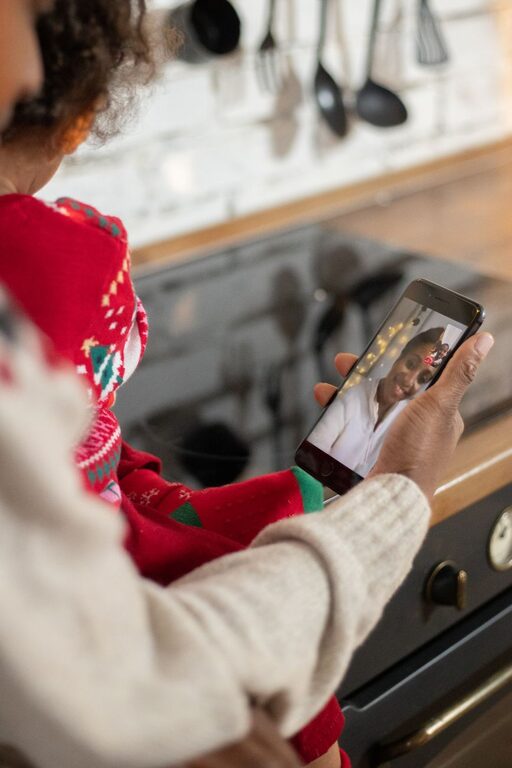
Video calls make it easier to stay connected when family and friends live far away or cannot meet in person. With a smartphone, tablet, or computer, you can share conversations, celebrations, hobbies, and everyday moments from almost anywhere.
A successful video call does not require expensive equipment or advanced technical skills. A little preparation can make calls more comfortable, easier to follow, and more enjoyable for everyone.
Choose a Video Calling App
Many popular apps offer video calling, including services built into smartphones and well-known messaging platforms. The best choice is usually the app that your family and friends already use.
Before scheduling a call, consider:
– Whether the app works on your device
– Whether it supports group calls
– How easy it is for everyone to join
– Whether the app requires an account
– Whether the call works well with your internet connection
If someone is new to video calls, choose a simple app with clear buttons and a straightforward sign-in process. It can also help to use the same app for regular calls so everyone becomes familiar with it.
Check Your Equipment
Most modern smartphones, tablets, and laptops include a camera and microphone. You may not need anything beyond the device you already own. However, checking your equipment before the call can help prevent common problems.
Test the Camera and Microphone
Open the video calling app and look for its settings or test feature. Check that:
– Your face is visible on the screen
– Your microphone is turned on
– The speaker volume is comfortable
– The camera lens is clean
– The app has permission to use the camera and microphone
If the microphone does not work, check whether the device is muted. You can also try headphones with a built-in microphone, especially if you hear an echo.
Keep the Device Steady
A shaky camera can make a call tiring to watch. Place your device on a stable surface, use a stand, or lean it against a sturdy object. Position the camera close to eye level so the conversation feels more natural.
Find a Comfortable Location
Choose a quiet, well-lit place for your call. Background noise from televisions, appliances, or busy rooms can make it difficult for others to hear you.
Good lighting is also important. Face a window or place a lamp in front of you rather than behind you. Strong light behind your head can make your face appear dark.
A simple background is often best, but it does not need to be perfect. A tidy corner, a bookshelf, or a comfortable chair can help create a relaxed setting. If the app includes a background option, use one that is easy to see and does not distract from the conversation.
Plan the Best Time
A planned call is easier to manage than an unexpected one. Send a message beforehand to ask when everyone is available, especially if people live in different time zones or have different schedules.
When planning a group call, consider:
– The number of people joining
– The expected length of the call
– Whether children or pets may be present
– Whether anyone needs help setting up
– Whether the timing works for different households
You can create a regular schedule, such as a Sunday afternoon family call or a monthly call with old friends. A predictable routine gives everyone something to look forward to.
Make Group Calls Easier
Group calls can be lively, but several people speaking at once may make the conversation difficult to follow. A few simple habits can help.
Ask participants to mute their microphones when they are not speaking, particularly if they are in a noisy location. Encourage everyone to say a person’s name before asking a question. This helps the group know who is being addressed.
It can also help to choose one person to guide the conversation. They might welcome everyone, introduce topics, and make sure quieter participants have a chance to speak.
If the group is large, divide the call into smaller sections. For example, you could begin with everyone together and then move into smaller conversations if the platform supports that feature.
Add More Than Conversation
A video call can feel more personal when you share an activity instead of simply talking. Try choosing activities that are easy to follow from a screen.
Ideas include:
– Eating the same meal together
– Showing one another a favorite book
– Playing a simple word or trivia game
– Watching a short video and discussing it
– Sharing photos from a recent activity
– Cooking the same recipe
– Giving a short tour of a garden, workspace, or hobby area
– Celebrating a birthday or special occasion
For younger family members, a short activity may work better than an open-ended conversation. Reading a story, drawing together, or showing a favorite toy can give the call a clear focus.
Help New Users Feel Comfortable
Some people may feel nervous about using video calls. They may worry about pressing the wrong button, appearing on camera, or having technical problems. Offer patient, step-by-step help without making the process feel rushed.
Before the first call, explain the basics:
- How to open the app
- How to join the call
- How to turn the camera on or off
- How to mute and unmute the microphone
- How to end the call
A short practice call can make the real conversation easier. You can also write down simple instructions or send screenshots showing which buttons to press.
Protect Privacy and Comfort
Use trusted apps and download them from the official app store for your device. Avoid sharing meeting links or access codes publicly. If the platform offers a waiting room, password, or similar control, consider using it for private gatherings.
Be mindful of what appears in the camera view. Remove personal documents, private screens, or anything you do not want others to see. You can turn off your camera temporarily if you need to move around or handle something nearby.
It is also helpful to agree on basic call etiquette. Everyone should feel free to take a break, leave early, or turn off the camera when needed.
Handle Common Problems
Technical issues are normal, especially when several people join from different locations. Staying calm and trying one solution at a time usually helps.
If the video freezes:
– Check the internet connection
– Move closer to the wireless router
– Turn off other apps using a lot of data
– Turn the camera off temporarily
– Leave and rejoin the call
If the audio is unclear, check the mute button, lower background noise, or try headphones. If the app stops responding, close and reopen it. Restarting the device may also solve a temporary problem.
Have a backup plan for important conversations. If video is not working, continue with an audio call or exchange messages until the connection improves.
Focus on the Quality of the Connection
Video calls are not a replacement for every in-person visit, but they can help maintain close relationships between visits. The most important part is not perfect lighting, a spotless background, or a long conversation. It is making time to listen, share, and stay involved in one another’s lives.
Start with short, manageable calls and adjust as everyone becomes more comfortable. With a little planning and patience, video calls can become a simple, meaningful part of keeping in touch with family and friends.