
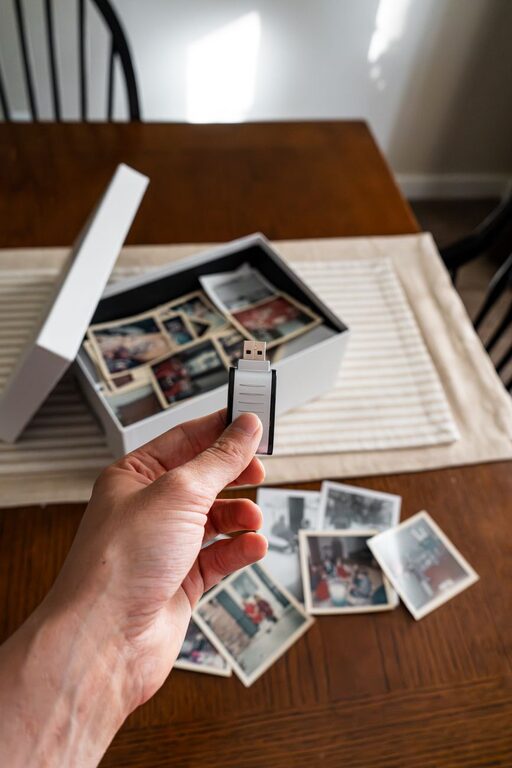
Keeping family photos and important documents in the cloud can make everyday life much easier. Instead of searching through drawers, boxes, phones, and old computers, you can create one organized system that is accessible from almost anywhere.
The key is to use clear folders, consistent file names, and a regular maintenance routine. With a little planning, your cloud storage can become a reliable family archive rather than another digital junk drawer.
Choose the Right Cloud Storage Service
Start by choosing a cloud storage service that works well on your family’s devices. Many services offer apps for phones, tablets, and computers, along with automatic photo uploads and file sharing.
When comparing options, consider:
– Available storage space
– Monthly or yearly cost
– Automatic photo backup
– File sharing features
– Ease of use
– Compatibility with your devices
– Options for downloading your files
– Security settings and account recovery
A free account may be enough for a small collection of documents, but photos and videos can use storage quickly. If several family members will upload files, choose a plan that leaves room for growth.
Avoid spreading files across too many services unless there is a specific reason. Using one main location makes it easier to search, manage, and back up your information.
Create a Simple Folder Structure
A clear folder system helps everyone know where files belong. Keep the structure simple enough that family members will actually use it.
One useful top-level structure is:
– Family Photos
– Important Documents
– Home and Property
– Travel
– School and Activities
– Shared Projects
– Archive
Inside the Family Photos folder, you might create folders by year:
– 2024
– 2025
– 2026
You can add another level for major events or people when needed:
– 2026
– January Family Dinner
– Spring Vacation
– Mia Birthday
– Summer Camp
For important documents, organize by category:
– Identification
– Home
– Vehicles
– School
– Pets
– Insurance
– Taxes
– Warranties
– Medical Records
Keep in mind that a folder system should help you find files, not create extra work. If a folder becomes too detailed, simplify it.
Organize Photos by Year and Event
Photos are often the largest part of a family cloud library. Begin by gathering pictures from phones, cameras, memory cards, computers, and social media downloads.
Upload them in batches rather than trying to organize everything in one afternoon. Start with recent photos, then work backward through older collections.
Use a consistent naming style for folders, such as:
– 2026 01 New Years Day
– 2026 04 Spring Trip
– 2026 07 Family Reunion
Starting folders with the year and month keeps them in chronological order. Use short, descriptive names that make sense at a glance.
For a large photo collection, consider creating a separate folder called “To Organize.” Move unsorted photos there temporarily. Then set aside a small amount of time each week to sort them into their permanent folders.
Remove Duplicates and Unwanted Files
Before uploading everything, remove blurry images, accidental screenshots, duplicate downloads, and photos you no longer need. This saves space and makes the collection easier to browse.
Do not delete unique family memories simply because they are not perfect. A slightly imperfect photo may still be valuable if it captures an important person or moment.
For videos, use the same naming and folder system as your photos. Videos can take up significant space, so review them carefully and keep the versions that are most useful.
Scan and Store Important Documents
Paper documents can be scanned with a phone scanning app or a home scanner. Place each document on a flat, well-lit surface and make sure all text is readable.
Save documents as PDF files whenever possible. PDFs are easy to open, print, and share across different devices.
Use descriptive file names that include the document type and date. For example:
– 2026 Home Warranty Kitchen Appliance.pdf
– 2025 Vehicle Registration Sedan.pdf
– 2024 School Enrollment Jordan.pdf
Avoid vague names such as “scan001” or “document new.” Clear names save time when you are searching later.
For multi-page documents, combine all pages into one file instead of saving each page separately. Check the finished file before discarding the paper original.
Some documents may need to remain in their original paper form. Store those in a labeled, secure location and use the cloud copy as a convenient reference.
Use a Consistent File Naming System
A naming system is especially helpful when several people upload files. Choose a format that everyone understands and use it consistently.
A useful format is:
Year Month Description Person
Examples include:
– 2026 03 Passport Taylor
– 2025 11 School Schedule Avery
– 2024 08 Home Repair Receipt
Avoid using symbols that may not work well across different devices. Keep file names short but specific, and include version numbers for documents that change over time:
– Family Budget 2026 Version 1
– Family Budget 2026 Version 2
For photos, you do not need to rename every individual image if the folders are well organized. Rename only special images, group photos, or files that are difficult to identify.
Separate Private and Shared Files
Not every document should be available to every family member. Create separate areas for private files and shared family materials.
Shared folders might include:
– School calendars
– Vacation plans
– Home maintenance records
– Family recipes
– Event photos
– Product manuals
Private folders may contain personal identification, account information, or documents intended for one adult. Use the cloud service’s sharing controls to limit access.
Before sharing a folder, check whether recipients can edit, upload, or delete files. Give people only the level of access they need. For example, family members may need to view photos without being able to remove them.
Review shared folders regularly, especially after a project or event is finished.
Protect Your Cloud Library
Cloud storage is convenient, but it should not be your only copy of important files. Use a backup plan with at least one additional copy stored elsewhere.
A practical approach is:
- Keep the main collection in the cloud.
- Save an additional copy to an external drive.
- Store that drive in a different location when possible.
- Update the backup on a regular schedule.
Turn on extra account protection offered by your cloud service, such as sign-in alerts or two-step verification. Use a unique password and keep account recovery information current.
Be careful when sharing links. A link that allows anyone to access a file can be forwarded to others. Use restricted sharing whenever possible and remove access when it is no longer needed.
Create a Monthly Maintenance Routine
A small routine prevents the library from becoming disorganized again. Once a month, set aside 20 to 30 minutes to:
– Upload new photos
– Sort files from the “To Organize” folder
– Rename unclear documents
– Remove duplicates
– Review shared folders
– Check the backup
– Confirm that important files open correctly
You can also invite family members to help. Assign simple tasks, such as uploading school documents or selecting favorite photos from a recent trip.
Make Your System Easy to Use
The best organization system is one that your family can follow without lengthy instructions. Create a short note that explains where common files belong and how to name new uploads.
Pin frequently used folders in the cloud app, add shortcuts to the home screen, and keep the folder structure consistent across devices.
Do not wait for the perfect system before you begin. Start with the most important photos and documents, build a clear structure, and improve it over time. With regular care, your family cloud library can preserve memories, reduce paper clutter, and make important information easier to find when you need it.